Shopify CRO Audit Checklist: 27 Fixes to Boost Conversions (2026)
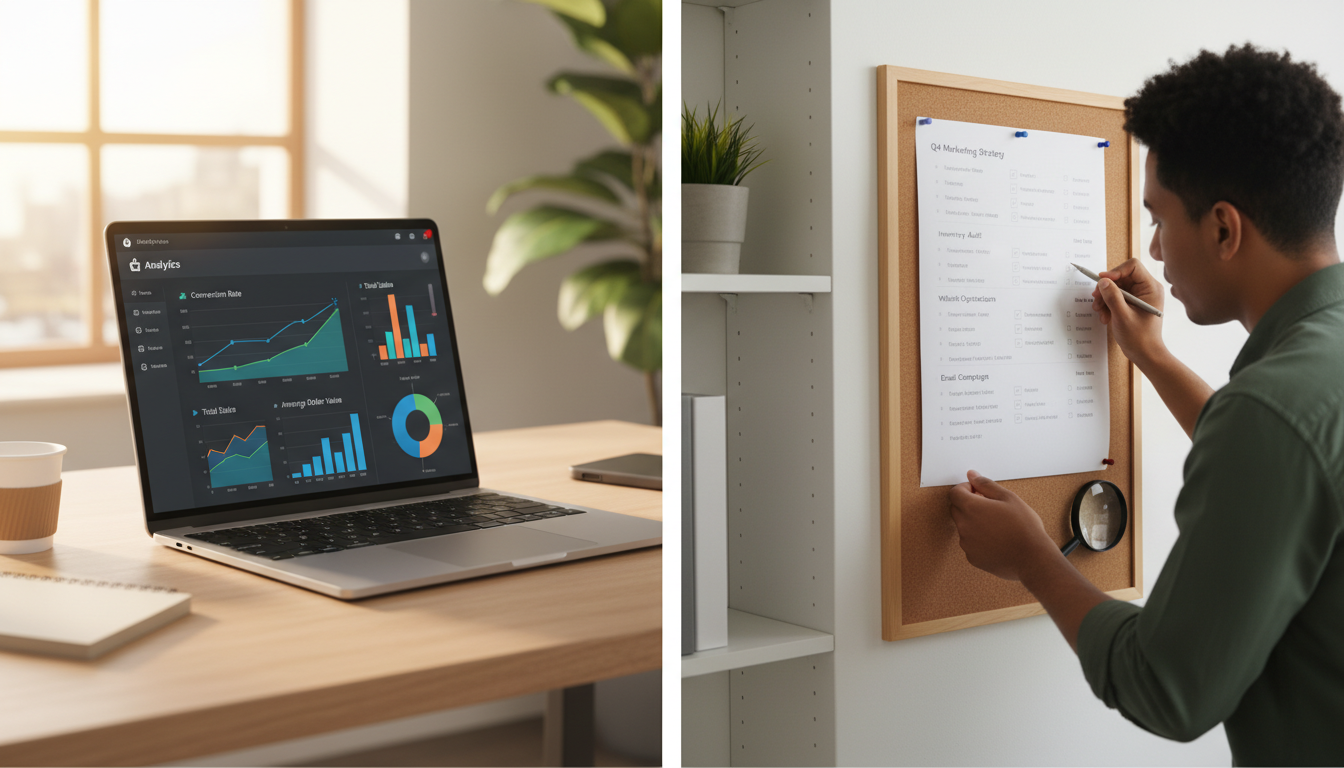
Your Shopify store is getting traffic, but the revenue isn’t matching up. The average Shopify store converts at 1.4% — most stores doing $50K–$500K/year are sitting well below that number, leaking thousands in revenue every single month. A structured Shopify CRO audit is how you stop the bleeding.
This isn’t a surface-level checklist. Every item below maps directly to a revenue lever: checkout friction, page speed, trust signals, product page copy, mobile UX, and post-purchase flows. Work through this systematically and you will find fixable issues within the first 30 minutes.
- A 27-point Shopify CRO audit framework covering speed, UX, checkout, and retention
- Specific Shopify Admin paths and tool names (Hotjar, GA4, Klaviyo, Rebuy, PageSpeed Insights)
- Benchmark data so you know what “good” actually looks like for your store size
- The exact PAA questions Shopify merchants Google — answered in full detail
- A prioritization method so you fix the highest-impact issues first
Why Most Shopify Stores Need a CRO Audit Right Now
Paid acquisition costs on Meta and Google have climbed sharply — CPCs on Google Shopping rose 17% year-over-year in 2025 (WordStream). If your conversion rate stays flat while your ad spend rises, margin evaporates. A single percentage point improvement in conversion rate on a $500K/year store adds roughly $100K in revenue without touching the ad budget.
The problem is that most merchants run their stores on gut instinct. They change button colors, install a new theme, or add a pop-up — and then wonder why nothing moved. A proper Shopify CRO audit replaces guessing with a repeatable diagnostic process.
The Full Shopify CRO Audit Checklist (27 Points)
Section 1: Site Speed & Core Web Vitals (Items 1–5)
Speed is not a technical luxury — it is a conversion variable. A 1-second delay in page load time reduces conversions by up to 7% (Portent). Google’s Core Web Vitals also influence your organic rankings, making speed a dual priority.
- Run PageSpeed Insights on your homepage, top collection page, and top product page. Target a Largest Contentful Paint (LCP) under 2.5 seconds and a Cumulative Layout Shift (CLS) score under 0.1. If you’re on a third-party theme, bloated app scripts are usually the first culprit.
- Audit installed apps in Shopify Admin → Apps. Every installed app, even inactive ones, can inject JavaScript into your storefront. Use Chrome DevTools → Network tab to identify scripts from apps you’re not actively using. Uninstall ruthlessly.
- Check image compression. Go to any product page, right-click an image, and open it in a new tab. If the file size exceeds 200KB for a standard product image, you have a problem. Use Shopify’s native image compression or an app like TinyIMG.
- Enable lazy loading for below-the-fold images. This is a Liquid-level change. Add
loading="lazy"to<img>tags that render below the fold. Most modern Shopify themes (Dawn, Sense, Craft) do this by default — older themes often don’t. - Minimize third-party scripts. Tools like Hotjar, Meta Pixel, and Google Tag Manager all add load time. Load them asynchronously and fire non-critical scripts (like Hotjar) only after the main thread is free. Use GTM to manage firing order.
Section 2: Homepage & Navigation (Items 6–9)
Your homepage isn’t a brochure — it’s a routing system. Its job is to move the right visitor to the right product page in the fewest clicks possible.
- Audit your hero section’s value proposition. Within 5 seconds of landing, a visitor should know what you sell, who it’s for, and why yours is better. If your hero headline is your brand name alone, that’s a conversion failure. Rewrite it around a specific customer outcome.
- Test your navigation depth. Use Hotjar session recordings to watch real users navigate. If visitors repeatedly hover over nav items without clicking, your taxonomy is confusing. Aim for no more than 2 clicks from homepage to product.
- Check your search functionality. Visitors who use site search convert at 3–5× the rate of browsers (Econsultancy). Go to Online Store → Themes → Customize and confirm your search bar is prominently placed. Consider upgrading to Searchanise or Boost Commerce for predictive search results.
- Validate mobile navigation. Open your store on a real mobile device (not just a browser emulator). Tap every nav item. Confirm dropdowns work with a thumb, not just a cursor. Hamburger menus that take more than 2 taps to reach a category are conversion killers on mobile, where over 72% of Shopify traffic now originates (Shopify Commerce Trends Report, 2025).
Section 3: Product Pages (Items 10–15)
Product pages close sales. Every element — title, imagery, copy, social proof, and the Add to Cart button — either moves a visitor toward purchase or gives them a reason to leave.
- Audit your above-the-fold layout on mobile. The Add to Cart (ATC) button must be visible without scrolling on a 375px-wide screen. If the button is below a wall of product images and bullet points, you’re forcing extra effort before the purchase action.
- Check image quality and variety. Product pages with at least 5 images (including lifestyle, detail, and scale shots) consistently outperform pages with 1–2 images. Video is even stronger — a short 15-second product demo can lift ATC rates by 20–30% on apparel and home goods.
- Evaluate your product descriptions. Descriptions should answer objections, not just list features. Specifically: What material/ingredient is this? How does sizing run? What problem does this solve? Use short paragraphs and bullet points — walls of text do not convert.
- Verify trust signals are present. Check for: a returns policy link, a shipping timeframe, an SSL badge, and visible customer reviews. Missing even one of these on a product page can tank purchase confidence for first-time buyers.
- Audit your reviews setup. Go to your product page and count the number of visible reviews. If you have fewer than 10 visible reviews on your top-selling product, use Okendo or Judge.me to trigger automated post-purchase review requests via email. Products with 5+ reviews convert 270% better than products with zero reviews (Spiegel Research Center).
- Test your variant selectors. If you sell products with size, color, or material variants, each selector must clearly indicate what’s selected and what’s out of stock. Greyed-out sold-out options with no explanation confuse shoppers. Use a variant app or Liquid customization to display “Notify Me” buttons on OOS variants instead of silently removing the ATC button.
Section 4: Cart & Checkout (Items 16–21)
This is where the money lives. The average documented cart abandonment rate across e-commerce is 70.19% (Baymard Institute, 2025). Every item in this section directly attacks that number.
- Enable Shop Pay in Shopify Admin → Settings → Payments. Shop Pay users convert at 1.72× the rate of guest checkouts (Shopify internal data). It’s the single highest-leverage checkout change you can make that requires zero development work.
- Enable all accelerated checkout options. In the same Payments settings, activate Apple Pay, Google Pay, and PayPal Express. Each payment method you add reduces friction for a segment of your buyers. Requiring card entry when someone’s phone has Face ID is unnecessary friction.
- Reduce checkout form fields. Go to Settings → Checkout and set all non-essential fields (company name, address line 2, phone number) to “Optional” rather than “Required.” Every required field you remove reduces abandonment.
- Add cart upsells with Rebuy. Rebuy’s Smart Cart allows you to present data-driven product recommendations in the cart drawer. Stores using Rebuy’s Smart Cart report an average order value (AOV) lift of 10–15% within the first 30 days. Configure your upsell rules under the Rebuy dashboard → Cart Widgets.
- Set up cart abandonment email flows in Klaviyo. Your abandonment sequence should have at minimum 3 emails: (1) a reminder at 1 hour, (2) a social proof email at 24 hours with reviews of the abandoned item, and (3) a time-limited incentive at 72 hours. Klaviyo’s abandonment flow template gets you 80% of the way there out of the box.
- Check checkout page branding. Go to Online Store → Themes → Customize → Checkout. Your checkout page should display your logo, match your brand colors, and show a clear order summary with product images. Generic-looking checkouts erode trust — especially for first-time buyers.
Section 5: Post-Purchase & Retention (Items 22–24)
Acquiring a new customer costs 5–7× more than retaining an existing one. The post-purchase experience determines whether a buyer becomes a repeat customer or a one-time transaction.
- Audit your order confirmation email. In Klaviyo, check that your transactional confirmation email includes: the order summary, expected delivery date, a support contact, and a secondary CTA (like “Complete your set” or “Refer a friend”). Most stores send the bare-minimum Shopify default, which is a missed retention moment.
- Set up a post-purchase upsell. Use Shopify’s native post-purchase page (available to all Shopify plans via checkout extensibility) or an app like AfterSell to present a one-click upsell immediately after payment is confirmed. This is the highest-intent moment a customer will ever be in — conversion rates on post-purchase upsells run 10–20%.
- Build a win-back flow for lapsed customers. In Klaviyo, create a segment of customers who purchased 90+ days ago and haven’t bought again. Trigger a 3-email win-back sequence. Industry data shows win-back emails have open rates of 25–40% and recover between 3–5% of lapsed customers.
Section 6: Analytics & Tracking (Items 25–27)
You cannot optimize what you cannot measure. These three items are non-negotiable before you start running A/B tests or making significant UX changes.
- Verify your GA4 e-commerce tracking is firing correctly. Go to GA4 → Reports → Monetization → E-commerce Purchases. If you see zero data or obvious gaps, your tracking is broken. Use Google Tag Manager to deploy GA4 with the Shopify GA4 integration, and verify purchase events are firing in GA4’s DebugView in real time.
- Install Hotjar on your top 5 pages. Set up heatmaps on your homepage, top collection page, top 3 product pages, and your cart page. After 500+ sessions per page, the scroll and click data will reveal exactly where users disengage — without any guesswork.
- Set up funnel reporting in GA4. Go to GA4 → Explore → Funnel Exploration. Build a funnel with these steps: Session Start → View Item → Add to Cart → Begin Checkout → Purchase. The drop-off percentages at each stage tell you exactly where to focus your CRO energy first.
Shopify CRO Benchmark Table: What “Good” Looks Like in 2026
Use this table to benchmark your store against industry standards. If you’re below the median in any category, that item should be near the top of your audit priority list.
| Metric | Below Average | Median (Shopify Stores) | Top 10% Performers | Primary Fix |
|---|---|---|---|---|
| Overall Conversion Rate | < 0.8% | 1.4% | 3.5%+ | Checkout friction, trust signals |
| Cart Abandonment Rate | > 80% | 70% | < 55% | Accelerated checkout, email flows |
| Mobile Conversion Rate | < 0.5% | 1.1% | 2.8%+ | Mobile UX, ATC button visibility |
| Page Load Time (LCP) | > 4s | 2.8s | < 1.8s | Image compression, script audit |
| Email List Capture Rate | < 1% | 1.95% | 4%+ | Pop-up timing, offer relevance |
| Average Order Value (AOV) | < $45 | $85 | $160+ | Cart upsells, bundles, Rebuy |
| Repeat Purchase Rate | < 15% | 27% | 45%+ | Post-purchase flows, loyalty |
| Product Page Review Count | 0–2 reviews | 8–12 reviews | 50+ reviews | Okendo / Judge.me automation |
What Is a Shopify CRO Audit Checklist?
A Shopify CRO audit checklist is a structured, sequential diagnostic process used to identify every element of your Shopify store that is reducing the percentage of visitors who complete a purchase. CRO stands for Conversion Rate Optimization — and an audit is the systematic evaluation that comes before any optimization work begins.
Unlike a random list of “best practices,” a proper Shopify CRO audit checklist is organized by the customer journey: from the moment a visitor lands on your site (speed, first impression, value proposition) through product discovery (navigation, search, collection pages), to product evaluation (PDPs, reviews, trust signals), to the purchase decision (cart, checkout, payment options), and finally to post-purchase retention (email flows, upsells, loyalty).
The key distinction is that a checklist is a diagnostic tool, not an action plan. You run the audit first to find what’s broken or underperforming in your specific store. Then you prioritize fixes based on the potential revenue impact, not based on what’s easiest to implement.
A thorough Shopify CRO audit checklist will typically cover:
- Technical performance: Core Web Vitals, LCP, CLS, app script bloat
- On-site UX: Navigation depth, mobile usability, search functionality
- Product pages: Images, descriptions, social proof, variant UX
- Cart and checkout: Form fields, payment options, trust elements
- Post-purchase: Email automation, upsells, retention mechanics
- Analytics infrastructure: GA4 accuracy, heatmap setup, funnel tracking
Most Shopify merchants doing under $1M/year have never run a formal CRO audit. They make isolated changes — a new theme here, a discount pop-up there — without understanding the full picture of where their funnel is broken. A structured audit changes that. It gives you a prioritized, evidence-based list of what to fix and in what order, so every hour you spend on optimization generates maximum return.
How to Fix Issues Found in a Shopify CRO Audit
Finding the issues is only half the job. The fix strategy matters just as much. Here’s how to move from audit findings to implemented improvements without wasting weeks on low-impact changes.
Step 1: Score Every Issue by Revenue Impact
After running through your checklist, assign each issue a score of 1–3 based on how directly it affects purchase completion. Checkout-stage issues score 3. Product page trust gaps score 2. Homepage copy issues score 1. Fix 3s first, always.
Step 2: Separate Quick Wins from Development Tasks
Some fixes take 15 minutes in Shopify Admin — enabling Shop Pay, tightening required checkout fields, adding a returns policy badge. Others require a developer — Liquid template changes, script optimization, custom variant UX. Batch quick wins together and ship them first. Don’t let a 6-week development project block a 15-minute conversion lift.
Step 3: Use Hotjar Data to Validate Before Fixing
Before you redesign a product page based on a gut feeling from the audit, check Hotjar session recordings for that page. If you see 70% of mobile users not scrolling past the first image, you have visual confirmation that above-the-fold content is underperforming — which justifies the fix. Data-backed changes are faster to get approved internally and easier to measure afterward.
Step 4: A/B Test High-Traffic Pages
For pages with 1,000+ unique visitors per month, run A/B tests before permanently implementing changes. Use Google Optimize’s successor (now handled natively in GA4 experiments or third-party tools like Convert.com) to test one variable at a time. Test your product page headline, your ATC button copy, or your hero image — not all three simultaneously.
Step 5: Implement Tracking Before and After Each Fix
In GA4, use custom events or annotations to mark the date of each change. This lets you compare conversion rates in the 30 days before versus 30 days after each fix. Without before/after tracking, you’re running improvements blind and have no way to prove — or disprove — that a change is working.
Step 6: Re-Audit Every 90 Days
Your store changes. New apps get installed, traffic sources shift, seasonal products come and go. A CRO audit is not a one-time event — it’s a quarterly practice. Build it into your operational calendar the same way you review ad spend or inventory.
Why Shopify Stores Have Conversion Rate Problems in the First Place
Understanding the root causes of low conversion rates on Shopify helps you run more targeted audits and avoid recreating the same problems after fixing them.
The most common underlying cause is prioritizing aesthetics over function. Shopify makes it easy to launch a visually impressive store using premium themes. But a beautiful theme with slow load times, vague product copy, and a 10-field checkout form will convert at 0.6% while a plainer store with fast load times and 3-click checkout hits 2.5%.
A second systemic cause is app accumulation. Shopify’s App Store has over 10,000 apps. Merchants install them to solve specific problems — a reviews app, a loyalty app, a pop-up app, a bundle app — and rarely uninstall anything. Each app can add 50–300ms of load time to your storefront. Ten apps running simultaneously can push your LCP past 4 seconds without any single app being obviously at fault.
A third cause is misaligned traffic. If you’re driving cold traffic from broad Meta campaigns to a homepage with no clear product focus, your conversion rate will be structurally low regardless of how well-optimized your checkout is. A CRO audit should always include a traffic source analysis in GA4 → Acquisition to confirm that the traffic hitting your high-intent pages is actually high-intent.
Seasonal and promotional patterns also create conversion rate volatility that merchants misdiagnose as a CRO problem. A conversion rate drop in January after a strong December BFCM push is normal buyer behavior, not a site issue. Your audit baseline should always use a rolling 90-day average, not week-to-week snapshots.
Finally, many Shopify stores underinvest in mobile UX specifically. Desktop conversion rates on Shopify average 2.1% while mobile averages just 1.1% — that gap exists almost entirely because mobile product pages and checkouts are harder to use, not because mobile shoppers are less motivated to buy.
How to Prevent Conversion Rate Problems Before They Start
The best version of a Shopify CRO audit is one you rarely need because your store was built and maintained with conversion in mind from day one. Here’s how to set up prevention systems that keep your conversion rate stable as your store scales.
Establish a Speed Budget Before Installing Any App
Decide upfront that your store will maintain an LCP under 2.5 seconds. Before installing any new app, check its impact using Google PageSpeed Insights before and after a trial install. If an app adds more than 200ms of load time and doesn’t directly impact conversion (like a loyalty program with measurable repeat purchase data), remove it.
Build a Permanent Hotjar Monitoring Setup
Don’t use Hotjar reactively. Keep heatmaps running permanently on your top 5 highest-traffic pages. Review recordings weekly as part of your standard store operations. Catching UX degradation early — like a broken variant selector after a theme update — prevents conversion drops that compound over weeks before you notice them in your overall rate.
Use Klaviyo Flow Health Checks Monthly
In Klaviyo, set a monthly calendar reminder to review your abandonment flow open rates, click rates, and revenue-per-recipient. If open rates drop below 20% or revenue-per-recipient drops significantly, your flows need copy updates, offer refreshes, or timing adjustments. Flows degrade over time as your audience’s email behavior evolves.
Implement a Post-Launch Checklist for Every Theme Update
Theme updates are one of the most common sources of silent conversion damage. After any theme update, run through a 10-point checklist: check mobile ATC button visibility, test checkout on mobile, verify review widgets are loading, confirm GA4 events are firing, and run a PageSpeed Insights test. Do this within 24 hours of every update.
Track Conversion Rate by Traffic Source Monthly in GA4
In GA4, go to Advertising → Traffic Acquisition. Segment by source/medium and look at your conversion rate per channel. If Meta traffic converts at 0.4% while email traffic converts at 3.8%, that’s not a site problem — that’s a traffic quality problem. Optimizing your paid audiences is a CRO lever most merchants overlook entirely.
Prioritizing Your Shopify CRO Audit Findings
After running all 27 checklist items, you’ll typically find 8–15 actionable issues. The question is always: where do you start? Use this simple scoring matrix to prioritize:
- Impact on checkout completion (highest priority): Payment options, form fields, cart abandonment flows
- Impact on product page conversion: Trust signals, reviews, mobile ATC visibility
- Impact on traffic quality: GA4 funnel setup, source/medium analysis
- Impact on retention: Post-purchase email flows, win-back sequences
- Impact on acquisition cost efficiency: Page speed, Core Web Vitals (affects Quality Score)
Run the checklist every 90 days. The first pass will surface the biggest issues. The second pass will catch the subtler ones. By the third pass, you’re running a genuinely high-performing Shopify store — one where every element of the customer journey has been examined, tested, and deliberately optimized for revenue.
The merchants who consistently hit 3%+ conversion rates aren’t running different stores from the ones stuck at 0.8%. They’re running the same type of Shopify store, with the same product categories and similar traffic volumes — but they have a system for finding and fixing friction, and they run it repeatedly. This checklist is that system.