Shopify Speed Optimization: 13 Proven Techniques to Accelerate Your Store (2026)
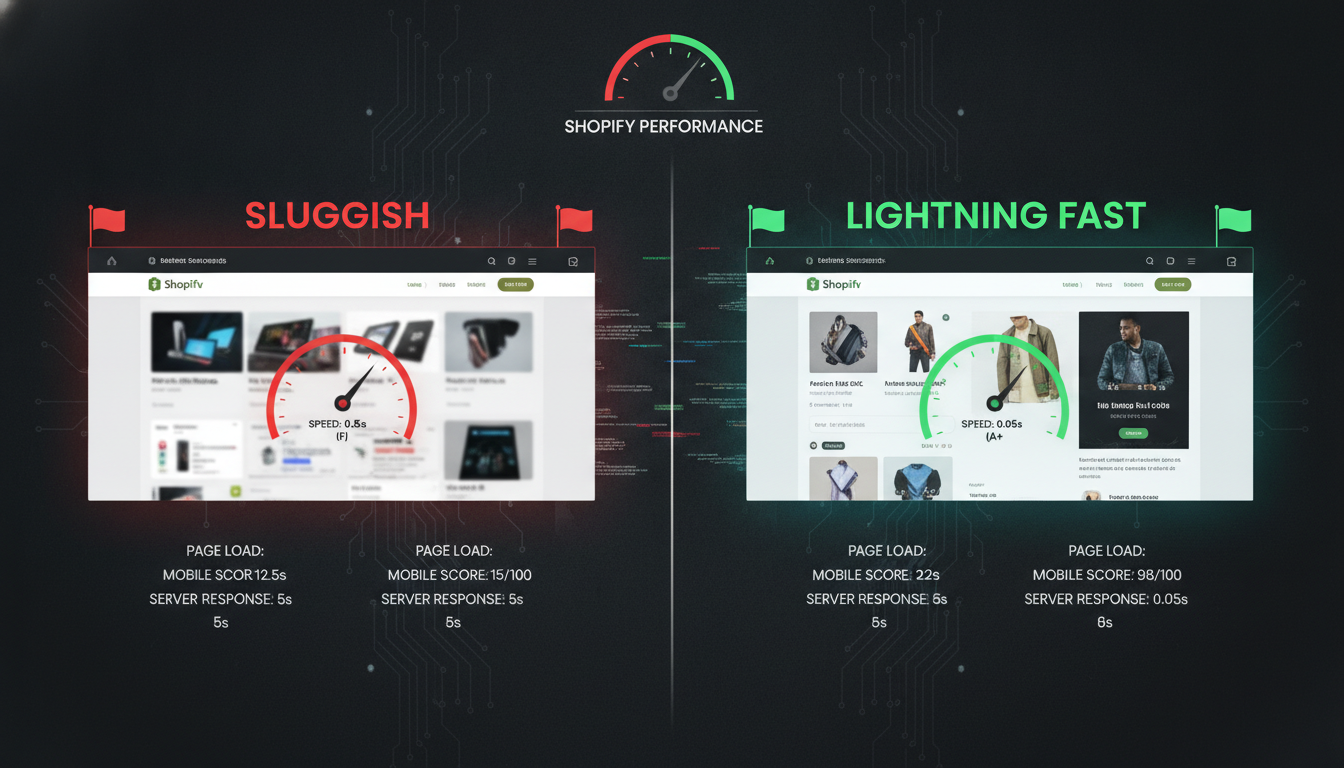
Your Shopify store is bleeding revenue every second it takes to load. A 1-second delay in page load time reduces conversions by up to 7% (Portent, 2024) — and on mobile, where more than 70% of Shopify traffic originates, the damage compounds fast. If your store scores below 50 on Google PageSpeed Insights, you’re not just losing sales; you’re actively handing customers to faster competitors.
Shopify speed optimization isn’t a one-time project. It’s a discipline. This guide gives you 13 specific, actionable techniques — the same ones applied to stores doing $500K to $5M/year — with exact admin paths, tool names, and benchmark data so you can start improving performance today.
- Why Shopify stores slow down and which culprits are costing you the most
- 13 tactical speed optimization techniques ranked by impact
- Specific tools — including Google PageSpeed Insights, Hotjar, and GA4 — to measure and monitor performance
- How to audit your theme, apps, images, and scripts without a developer
- Benchmark data showing what “good” speed looks like for Shopify stores in 2026
Why Shopify Store Speed Directly Impacts Revenue
Before diving into fixes, understand what’s at stake. Google’s Core Web Vitals are a confirmed ranking factor, meaning a slow store doesn’t just convert poorly — it ranks lower in organic search and costs you more per click in paid campaigns.
The three Core Web Vitals metrics every Shopify store owner needs to know are:
- Largest Contentful Paint (LCP): How long it takes for the main content to load. Target: under 2.5 seconds.
- Interaction to Next Paint (INP): How quickly your store responds to user input. Target: under 200ms. (INP replaced First Input Delay in March 2024.)
- Cumulative Layout Shift (CLS): Visual stability as the page loads. Target: under 0.1.
Amazon found that every 100ms of latency cost them 1% in sales (Amazon internal study, cited widely). At a $1M/year revenue run rate, a 300ms improvement is worth $30,000 annually — before accounting for the SEO lift.
Shopify Speed Benchmarks: Where Does Your Store Stand?
Use this table to benchmark your current performance. Run your store through Google PageSpeed Insights (pagespeed.web.dev) and GTmetrix to get your baseline scores before applying any fixes.
| Performance Tier | PageSpeed Score (Mobile) | LCP | INP | CLS | Estimated Conversion Impact |
|---|---|---|---|---|---|
| Excellent | 90–100 | < 2.0s | < 150ms | < 0.05 | Baseline (best possible) |
| Good | 75–89 | 2.0s – 2.5s | 150ms – 200ms | 0.05 – 0.1 | ~3–5% below baseline |
| Needs Improvement | 50–74 | 2.5s – 4.0s | 200ms – 500ms | 0.1 – 0.25 | ~10–20% below baseline |
| Poor | 0–49 | > 4.0s | > 500ms | > 0.25 | 20–40%+ below baseline |
The average Shopify store scores between 40–60 on mobile PageSpeed — firmly in “Needs Improvement” territory. The stores that get to 75+ are doing the 13 things listed below, consistently.
13 Shopify Speed Optimization Techniques That Actually Work
1. Audit and Remove Redundant Apps
Every Shopify app you install injects JavaScript, CSS, or both into your storefront — even apps you’ve stopped using. Each unnecessary app can add 50–300ms to your load time, and they accumulate silently.
To audit your apps:
- Go to Shopify Admin → Apps and list every installed app.
- Open Google PageSpeed Insights, run your homepage, and check the “Reduce unused JavaScript” diagnostic — it will name the scripts and their file sizes.
- Cross-reference each flagged script with its source app.
- Delete — not just disable — any app you haven’t actively used in 60 days.
Note: Deleting an app doesn’t always remove its code. Go to Shopify Admin → Online Store → Themes → Edit Code and search for leftover script tags referencing the removed app’s CDN. Delete them manually or hire a Liquid developer to do a clean sweep.
2. Compress and Convert Images to WebP or AVIF
Images are consistently the #1 cause of bloated Shopify pages. Shopify’s CDN automatically serves WebP to browsers that support it — but only if you upload images that meet its compression thresholds.
Best practices for Shopify image optimization:
- Upload product images at 2048 × 2048px maximum — Shopify’s image transformation handles responsive sizing.
- Use TinyPNG or Squoosh to compress images before uploading. Target file sizes under 200KB for product images, under 100KB for thumbnails.
- In your Liquid templates, always use the
image_urlfilter with width parameters:{{ product.featured_image | image_url: width: 800 }}— this forces Shopify to serve a resized, CDN-cached version. - Add
loading="lazy"to all below-the-fold images andfetchpriority="high"to your hero image to improve LCP directly.
3. Minify and Defer Non-Critical JavaScript
Shopify’s Dawn theme and most premium themes ship with minified JS by default. The problem is third-party scripts — chat widgets, review apps like Okendo, upsell tools like Rebuy — which load synchronously and block rendering.
Two fixes that don’t require a developer:
- Enable Shopify’s built-in JavaScript deferral: Go to Online Store → Themes → Customize → Theme Settings. Many themes (including Dawn 12+) have a “Defer non-essential scripts” toggle under performance settings.
- Use the
deferattribute manually: In your theme’stheme.liquidfile, adddeferto any<script>tag that doesn’t need to execute before the page renders — analytics tags, marketing pixels, and chat widgets are prime candidates.
4. Switch to a Performance-First Shopify Theme
Your theme is the foundation. A bloated theme with 15 font variants, parallax animations, and inline CSS will drag every other optimization effort down.
Shopify’s free Dawn theme consistently scores 85–95 on mobile PageSpeed out of the box — no other commercial theme comes close without significant custom work. If you’re on a legacy theme built before 2022, a theme migration to Dawn or Prestige (which averages 78–85 mobile) will deliver more speed gains than any other single action on this list.
Before migrating, use Shopify’s Theme Inspector for Chrome (a free Chrome extension by Shopify) to profile render times for each section and identify which theme sections are heaviest.
5. Optimize Your Liquid Code — Reduce Render-Blocking Loops
Custom Liquid code with nested for loops, excessive include tags (now deprecated in favor of render), and unoptimized collection filters can spike server-side render times — something PageSpeed won’t catch but your Time to First Byte (TTFB) will reflect.
Key Liquid optimization rules:
- Replace all
{% include %}tags with{% render %}— the latter creates an isolated scope and is faster. - Avoid looping through large collections (100+ products) on a single page template without pagination.
- Cache repeated logic using
{% assign %}variables instead of recalculating inside loops. - Remove unused sections from your theme’s
sections/folder — even unused Liquid files add to Shopify’s compile overhead.
6. Implement Critical CSS Inlining
Your browser needs CSS before it can render anything. If your stylesheet is a 200KB monolith loaded externally, you’re adding a full round-trip network request to every page load.
The fix: extract the CSS rules needed to render above-the-fold content (“critical CSS”) and inline them directly in <head> of theme.liquid. Load the full stylesheet asynchronously with:
<link rel="preload" href="{{ 'theme.css' | asset_url }}" as="style" onload="this.onload=null;this.rel='stylesheet'">Tools like Critical (npm package) or Penthouse automate critical CSS extraction. For non-technical store owners, the Crush.pics app handles image-side performance, while a Shopify developer can implement critical CSS inlining as a one-time project.
7. Use Shopify’s Native Lazy Loading and Preconnect Hints
Add resource hints to theme.liquid inside <head> to establish early connections to third-party domains your store depends on:
<link rel="preconnect" href="https://fonts.shopifycdn.com">
<link rel="preconnect" href="https://cdn.shopify.com">
<link rel="dns-prefetch" href="https://www.google-analytics.com">
For stores using Klaviyo for email marketing, add a dns-prefetch for Klaviyo’s tracking endpoint too. These hints cost nothing but shave 100–200ms off third-party resource load times.
8. Limit Custom Font Variants
Each custom font weight and style is a separate HTTP request. A store using a Google Font with Regular, Medium, SemiBold, Bold, and Italic variants is making five additional network requests before a single word renders.
Audit your fonts:
- Go to Online Store → Themes → Customize → Theme Settings → Typography.
- Check how many font weights are active. Limit yourself to two: one for body text, one for headings.
- Use
font-display: swapin your CSS to prevent invisible text during font loading (FOIT). - Consider switching to system fonts for body text — they’re zero-download and render instantly.
9. Enable Shopify’s Predictive Prefetching
Shopify’s Instant Page functionality (built into Dawn 9+ and available as a lightweight script for older themes) preloads page content when a user hovers over a link. This makes navigation feel instantaneous because the next page is already cached by the time the user clicks.
For older themes, add the Instant Page script (instant.page) manually by placing the following before </body> in theme.liquid:
<script src="//instant.page/5.2.0" type="module" integrity="sha384-jnZyxPjiipYXnSU+ygvrkJmggeFa56/6yl9+qFAjBFIzx+R8N5m9kJm8n6AXGFX" defer></script>In user testing documented by Shopify Partners, predictive prefetching reduces perceived navigation time by 30–50% — even when actual load time is unchanged.
10. Consolidate and Self-Host Tracking Pixels
Most Shopify stores are running 5–10 tracking pixels: Meta Pixel, Google Analytics 4 (GA4), TikTok Pixel, Pinterest Tag, Klaviyo tracking, and more. Each is a separate third-party network request — and third-party requests are unpredictable, slow, and outside Shopify’s CDN.
Shopify’s Customer Privacy API and Web Pixels Manager (introduced in 2023 and significantly expanded by 2025) let you consolidate pixel management through a sandboxed Web Worker, which runs pixels off the main thread and reduces their impact on INP and LCP.
To configure Web Pixels:
- Go to Shopify Admin → Settings → Customer Privacy → Web Pixels.
- Add your Meta and GA4 pixels here instead of hardcoding them in
theme.liquid. - Remove the hardcoded pixel scripts from your theme file once migrated.
11. Optimize Your Shopify Checkout Speed
Shopify’s hosted checkout (on Shopify Plus and standard plans) is already fast — but checkout extensibility introduced through Checkout Extensions can slow it down if you’ve added multiple upsell blocks, custom fields, or third-party payment badges.
Audit your checkout:
- Go to Shopify Admin → Settings → Checkout → Customize.
- Remove any checkout extensions you’re not actively A/B testing for revenue lift.
- Keep upsell apps like Rebuy to one active block in checkout — multiple blocks compound load time.
- Test checkout speed separately using WebPageTest.org with a real purchase flow URL.
12. Run Regular Speed Audits with a Structured Tool Stack
Speed optimization without measurement is guesswork. Build a 30-day audit cadence using this specific stack:
- Google PageSpeed Insights — weekly, for mobile and desktop scores on homepage, a PDP, and a collection page.
- GTmetrix — bi-weekly, for waterfall analysis showing which resources take longest.
- Shopify Analytics → Reports → Online Store Speed — built-in Shopify speed score tracking over time.
- Hotjar — monthly session recordings to catch layout shift and slow-loading sections that cause user frustration even if PageSpeed doesn’t flag them.
- GA4 → Reports → Tech → Page Timing — segment by device type to find pages where mobile load time diverges sharply from desktop.
13. Use a Shopify-Native CDN Strategy for Videos and Large Assets
Embedding YouTube or Vimeo videos directly on product pages forces browsers to connect to a third-party server. Each embedded video iframe can add 400–600ms to your LCP.
The smarter approach:
- Upload short product videos (under 30 seconds) directly to Shopify Admin → Products → [Product] → Media. Shopify hosts these on its CDN and serves them faster than any third-party embed.
- For longer brand or educational videos, use a facade pattern: show a static thumbnail with a play button, and load the actual video embed only when the user clicks. This defers the heavy iframe entirely.
- Compress video files using Handbrake (free) before uploading — target H.264 encoding at a maximum 720p resolution for product videos.
What Is Shopify Speed Optimization?
Shopify speed optimization is the systematic process of reducing the time it takes for your Shopify storefront to load, render, and become interactive for a visitor — across all devices, particularly mobile. It encompasses front-end techniques (image compression, JavaScript deferral, CSS minification), Liquid template optimization, third-party script management, and server-side performance improvements like reducing TTFB (Time to First Byte).
Speed optimization is not a single action — it’s an ongoing discipline because every new app installed, every new section added to a page, and every new marketing pixel deployed has the potential to degrade performance. The average Shopify store adds 3–5 new apps per year, each of which introduces new JavaScript that wasn’t present during the last performance audit.
In 2026, Shopify speed optimization is inseparable from Core Web Vitals performance. Google’s PageSpeed Insights and Search Console measure LCP, INP, and CLS as “field data” — real-world performance across actual users on their actual devices — not just lab tests. This means your optimization results need to hold up under real traffic conditions, not just in a controlled audit environment.
Speed optimization also directly impacts your return on ad spend (ROAS). Facebook’s internal data shows that a 1-second improvement in mobile load time can lift mobile conversion rates by up to 27% (Meta for Business, 2023). If you’re spending $10,000/month on paid social, closing even half that gap pays for a full development sprint within weeks.
For Shopify stores, the primary optimization targets are: the homepage (highest traffic), product detail pages (highest conversion value), and the cart/checkout flow (highest revenue impact per millisecond of improvement).
How to Fix Shopify Speed Optimization Issues
Fixing Shopify speed problems follows a structured diagnostic-to-implementation workflow. Here’s the exact process used in professional Shopify audits:
Step 1: Establish Your Baseline
Run your homepage, a top product page, and your collection page through Google PageSpeed Insights. Record your mobile score, LCP, INP, and CLS. Screenshot the “Opportunities” and “Diagnostics” sections — these are your prioritized fix list, ranked by estimated time savings.
Step 2: Address the Highest-Impact Diagnostics First
PageSpeed’s “Opportunities” section quantifies the load time saving for each fix. Always prioritize by estimated savings, not by ease of implementation. Common high-impact findings in Shopify audits include:
- Eliminate render-blocking resources (usually 0.5–2s savings) — defer non-critical JS and CSS.
- Properly size images (usually 0.5–3s savings) — use Liquid’s image_url filter with width parameters.
- Reduce unused JavaScript (usually 0.3–1.5s savings) — audit and remove dormant apps.
- Serve images in next-gen formats (usually 0.2–1s savings) — Shopify’s CDN handles WebP automatically when you use Liquid image tags.
Step 3: Implement, Then Re-Test
Make one category of changes at a time. After each batch of changes, re-run PageSpeed Insights and record the new score. This isolates which changes had the most impact and prevents regressions from going undetected.
Step 4: Monitor Ongoing Performance in Shopify Analytics
Go to Shopify Admin → Analytics → Reports → Online Store Speed. Shopify tracks your theme speed score over a rolling 7-day average and flags when new app installs drag the score below baseline. Set a personal rule: if a new app drops your theme speed score by more than 5 points, evaluate whether the app’s revenue contribution justifies the speed cost.
Why Does Shopify Speed Suffer Over Time?
Shopify stores don’t launch slow — they get slow. Understanding the root causes prevents you from repeatedly solving the same problems.
The primary reason Shopify stores slow down is app accumulation. Every app installed injects assets into your storefront. Even when an app’s function is useful, its implementation is often inefficient — loading full libraries when only a fraction of functionality is used, or loading scripts on every page rather than only where they’re needed.
Second is theme customization drift. Over months and years, store owners (and developers) add custom code snippets, embed third-party widgets, add font variants, and layer new sections onto existing themes. Each addition is minor in isolation, but collectively they compound into significant load time regressions. A theme that scored 88 at launch often scores 55 after 18 months of accumulated customization.
Third is unoptimized merchant-uploaded content. Product images uploaded directly from a DSLR camera or a vendor’s high-resolution press kit can be 5–15MB per image. Shopify’s CDN resizes these images, but it doesn’t compress them beyond what you’ve uploaded. A collection page with 24 product images at 8MB each is a 192MB payload before any other assets load.
Fourth is tracking pixel sprawl. Marketing teams add pixels without informing developers, and those pixels accumulate across Meta, Google, TikTok, Pinterest, Klaviyo, and Bing — each loading on every page, including pages where the tracking data is irrelevant.
Shopify’s own research found that each additional app reduces a store’s Online Store Speed score by an average of 2–4 points. A store with 20 apps could be carrying a 40–80 point handicap purely from app overhead — before a single line of custom code is considered.
How to Prevent Shopify Speed Regression
Prevention is more efficient than repeated remediation. These are the processes that keep fast stores fast over the long term.
Establish a Performance Budget
A performance budget is a specific, documented threshold your store must not fall below. Example: “Mobile PageSpeed score must stay above 70. If any change drops it below 70, we roll back or optimize before the next deployment.” Document this and share it with every developer, agency, or app vendor who touches your store.
Adopt an App Approval Process
Before installing any new Shopify app:
- Record your current PageSpeed score.
- Install the app on a development or preview theme (not your live theme) via Online Store → Themes → Add Theme → Duplicate.
- Run PageSpeed on the preview theme with the app active.
- Compare scores. If the app costs more than 5 PageSpeed points, either find a lighter alternative or negotiate with the app developer to load scripts conditionally.
Schedule Quarterly App Audits
Every 90 days, review your full app list. For each app, answer two questions: Is it generating measurable revenue or saving measurable time? If yes, is there a lighter-weight alternative that delivers the same result? Delete apps that fail the first question without hesitation.
Implement Automated Speed Monitoring
Use SpeedCurve or Calibre to run automated daily performance checks against your key pages. Both tools send alerts when scores drop below your defined thresholds — catching regressions within 24 hours instead of discovering them weeks later during a manual audit.
Alternatively, set up a free Google Search Console account (if you haven’t already) and monitor the Core Web Vitals report under Search Console → Experience → Core Web Vitals. Google flags URLs that fall into “Poor” status and sends email alerts for significant regressions.
Standardize Image Upload Protocols
Create a simple one-page internal guide for anyone uploading product images: maximum file size (200KB), required dimensions (2048 × 2048px), required format (JPEG for photos, PNG only for transparency). Run all images through TinyPNG or Squoosh before uploading. This alone prevents the single most common source of ongoing speed regression in growing Shopify stores.
The Bottom Line on Shopify Speed Optimization
Shopify speed optimization in 2026 is not optional — it’s a direct revenue and SEO lever that compounds over time. The stores winning in organic search, paid social, and repeat purchase rate are consistently the ones with sub-2.5-second LCPs, clean app footprints, and optimized Liquid code. The 13 techniques in this guide — from app audits and image compression to Web Pixels consolidation and predictive prefetching — cover the full stack of what moves the needle for Shopify stores at the $50K to $5M revenue tier. Start with a PageSpeed Insights baseline, address the highest-impact opportunities first, and build the auditing habits that prevent performance from eroding the moment you stop looking.